eWebinar Update: Salesforce Integration

Todd Parmley




There are two ways to approach training via webinars:
Hosting every training session live. This allows for in-depth group discussions, activities, and Q&A sessions. (Emphasis on “group.”)
Creating automated webinars that walk through your training materials. This lets you pre-record trainings, add pre-set interactions like quizzes, action items, Q&As, and surveys, and run them on a recurring schedule or make them available for on-demand viewing. These types of webinar trainings focus on empowering individuals, answering their specific questions in chat, so they can succeed quickly at the task at hand.
Typically, live trainings are suitable for teams that only host them every now and then (like once a quarter) or on an ad-hoc basis, because trainings usually change each time — you might need to cover new, current information, or you want to facilitate discussions with fresh input from different subject matter experts or the group.
Automation is best for training, education, and customer success teams that regularly run repeat trainings — daily, weekly, monthly — or as often as they can! Think customer success teams onboarding new customers or training teams that spend their days running demos, teaching product basics — because it lets them:
Deliver a consistent, professional experience and reduce human error. They can record the most accurate and thorough version of their training and ensure they cover everything attendees need to know. There's no stumbling over explanations or forgetting important details when you're having an off day.
Save countless hours and free up time for other types of work. Instead of running the same trainings on repeat, your team can use that time for other high-value work — offering one-on-one support to customers who need extra attention, spending more time on high-touch accounts, or helping with product launches and other CS initiatives.
Make trainings more accessible and allow attendees to watch at any time. This is especially valuable for teams with global audiences who might not be able to attend training sessions at their usual times. You can offer trainings 24/7 — instead of forcing everyone to show up at a specific time (which might be 2 am for half your audience) — so people can watch whenever it works for them. (Thus, increasing your attendance 3X or more.)
Offer a personalized experience at scale that feels high touch. (This one is unique to our platform.) eWebinar's chat system lets you answer questions from attendees in real time or asynchronously via email after they go offline. Either way, no question gets missed, and every customer gets their specific questions answered.
Automation tools like eWebinar also allow teams to create multi-webinar training series, with dedicated webinars for each topic area — offering a comprehensive learning experience on autopilot.
In this guide, we’ll discuss the best webinar training platforms in both categories. We start with an in-depth overview of our automated webinar software, eWebinar, explaining how it lets you deliver high-quality trainings at scale.
If you want to learn more about eWebinar after reading, you can join our free demo below.
eWebinar is one of the top-rated automated webinar platforms (holding a solid 4.9-star rating) because our system:
Supports both single-webinar trainings and multi-webinar series. As of this writing, we’re the only automated webinar software that lets you create a comprehensive and structured series with a sequential learning path, gated controls, and completion certificates.
Has the most extensive gallery of interactive features (over 20!). This is what differentiates automated webinars from plain old videos. The webinar experience displays quizzes, polls, surveys, calls to action, feedback requests, and more, to engage users and keep their interest.
Offers a unique, flexible asynchronous chat. This lets you easily communicate with trainees during or after webinars. Trainees can chat in to your team while they watch webinars; if your team is available to respond instantly, they can communicate in real time, or if your team is unavailable, they can send replies later that are sent to trainees’ emails.
Our chat tool is what truly allows for webinar automation because your teams don’t need to be monitoring chat during every single training session — they can see all messages (no matter when they’re sent) in a central hub and get back to trainees at any point. And this feature is entirely exclusive to our system! Which is another reason why our solution is best suited for webinar trainings.
Plus, our system is so easy to use that anybody can create professional webinars in an afternoon. We include a variety of tools to guide you through building interactive webinars and designing comprehensive training series. There’s zero training or guesswork involved.
In the following sections, we’ll walk you through our core features and how they work. But if you’d like a more in-depth look under the hood, you can join our free demo below.
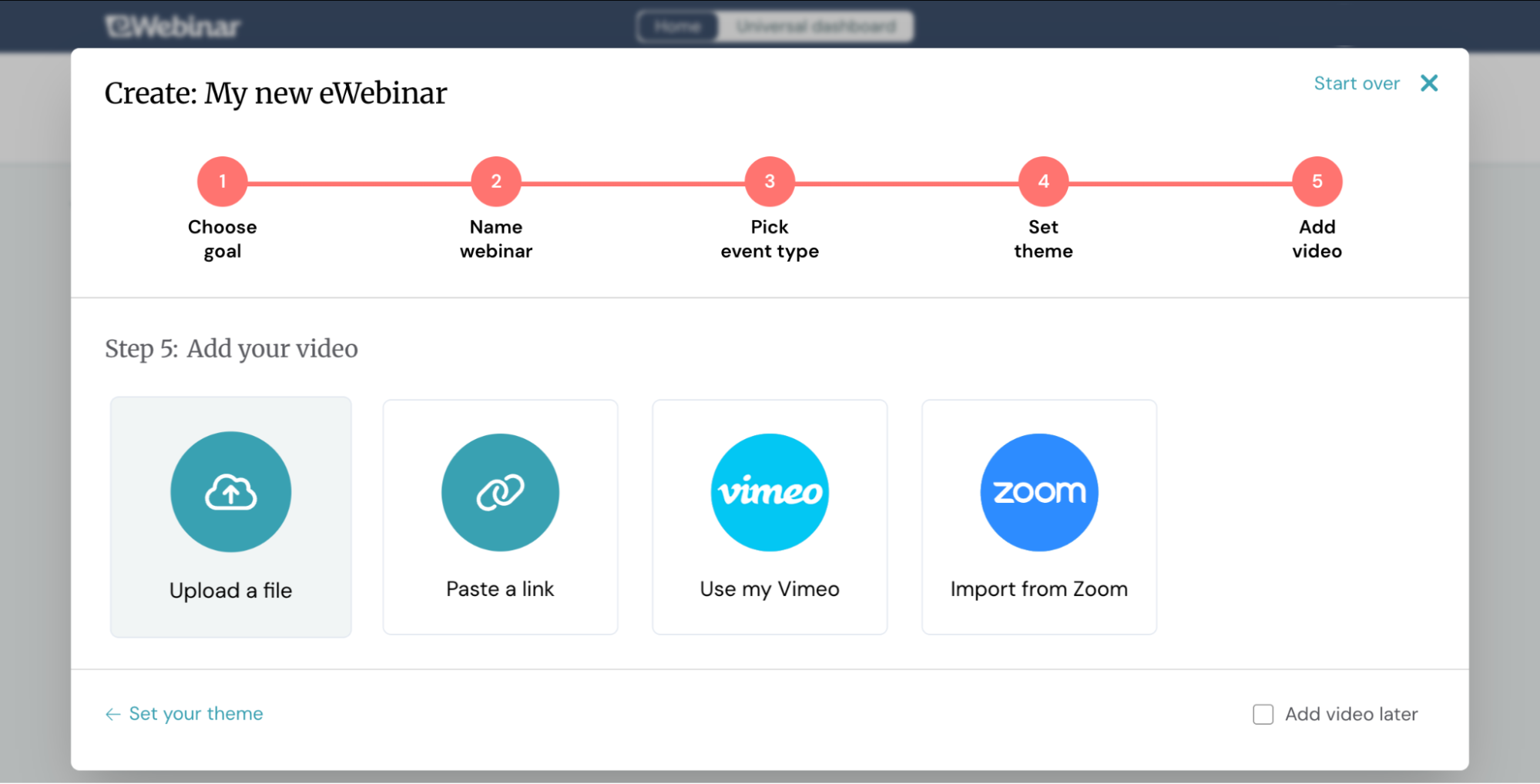
Our webinar builder walks you through each step of creating a training webinar. Here’s what that looks like:
Start with a template or build from scratch. We provide templates for onboarding and product training scenarios, each with predefined goals.
Upload your recording. Add a high-quality video file from your device, import directly from Zoom, Vimeo, or Descript, or include a link from a video-hosting platform like Wistia.
Name your webinar. Give it a clear title that tells trainees exactly what they'll learn.
Set your schedule. You can choose from a variety of options, but for trainings, we typically recommend selecting on-demand or recurring.
You'll select one scheduling option now, but eWebinar lets you add more viewing options later — so you can combine recurring, on-demand, and just-in-time viewing to give attendees flexibility.
Add your branding. Upload your logo and brand colors so they appear throughout the webinar experience, in webinar rooms, and on registration pages. You only need to do this once — eWebinar saves these details for all future webinars.
Specify your webinar goal (a.k.a., the action you want attendees to take after completing webinars). For webinar trainings, you may want attendees to use a particular product feature, advance to the next webinar, or book a session with your team.
Add interactions. Include a variety of interactions from our gallery to test attendees’ knowledge and keep them engaged with your training. We’ll talk more about how easy this is below.
Of course, you can always edit webinars after publishing. You can modify or include additional interactions, change the schedule, update the name, and more.
Once your webinar is created, you have two options:
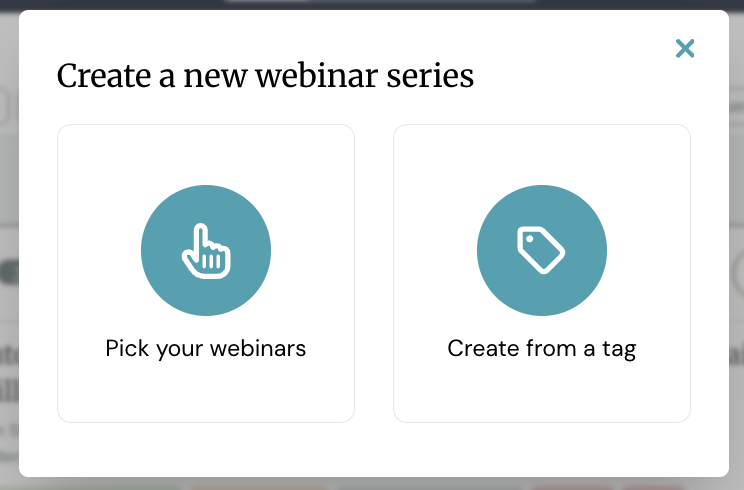
Our Webinar Series feature lets you build multi-webinar training programs with dedicated sessions for each learning module. Instead of cramming everything into one long presentation, you can break your training into focused, digestible webinars that guide attendees through a structured learning path.
Creating a series is straightforward.
You select which webinars to include and arrange them in whatever sequence makes sense for your training flow.
Or, if you've already tagged your webinars (like "Product Basics" or "Advanced Features"), you can pull all webinars with a specific tag to build a series in seconds.
Once your series is set up, you can reorder webinar topics at any time to adjust the learning path.
What sets Webinar Series apart is how it optimizes the experience for both trainer and trainee.
For the trainer (the one creating the webinar series), there are controls that let you structure the experience:
Choose the order in which webinars are completed. You can require users to complete webinars in order, or give them the flexibility to jump around. You can also specify how many webinars they must watch to fulfill series requirements.
Add quizzes and action items. Require trainees to complete quizzes — and even achieve a particular score — or finish specific action items before they can advance to the next webinar. This ensures they're actually absorbing the material and understanding key takeaways.
Set minimum watch times. Set requirements for how much webinar trainees must watch before moving forward. This prevents trainees from quickly skipping through webinars.
Offer completion certificates. Reward trainees who finish the entire series with a certificate. This is especially useful for compliance training, professional development programs, or any situation where participants need proof of completion.
Trainees get their own dedicated hub where they can:
Track their progress. See how far along they are in the series with a visual progress bar and see which webinars they've completed and what's left.
Pick up where they left off. See partially completed webinars, with specific instructions for how to complete them and the ability for trainees to jump back in where they left off.
Replay their sessions. Watch webinar replays anytime for a quick refresher.
Reference past chats. Refer back to conversations they had with your team during each webinar.
Get rewarded. View and download their completion certificate once they finish the series.
This hub gives trainees a central place to manage their learning journey — no hunting through emails to access webinars or wondering where they left off. There is one place to return to again and again.
eWebinar offers the widest variety of interactions to boost engagement throughout your training webinars. Our gallery features over 20 options — quizzes, polls, surveys, action items, handouts, Q&A prompts, feedback requests, CTAs, links, special offers, and more.
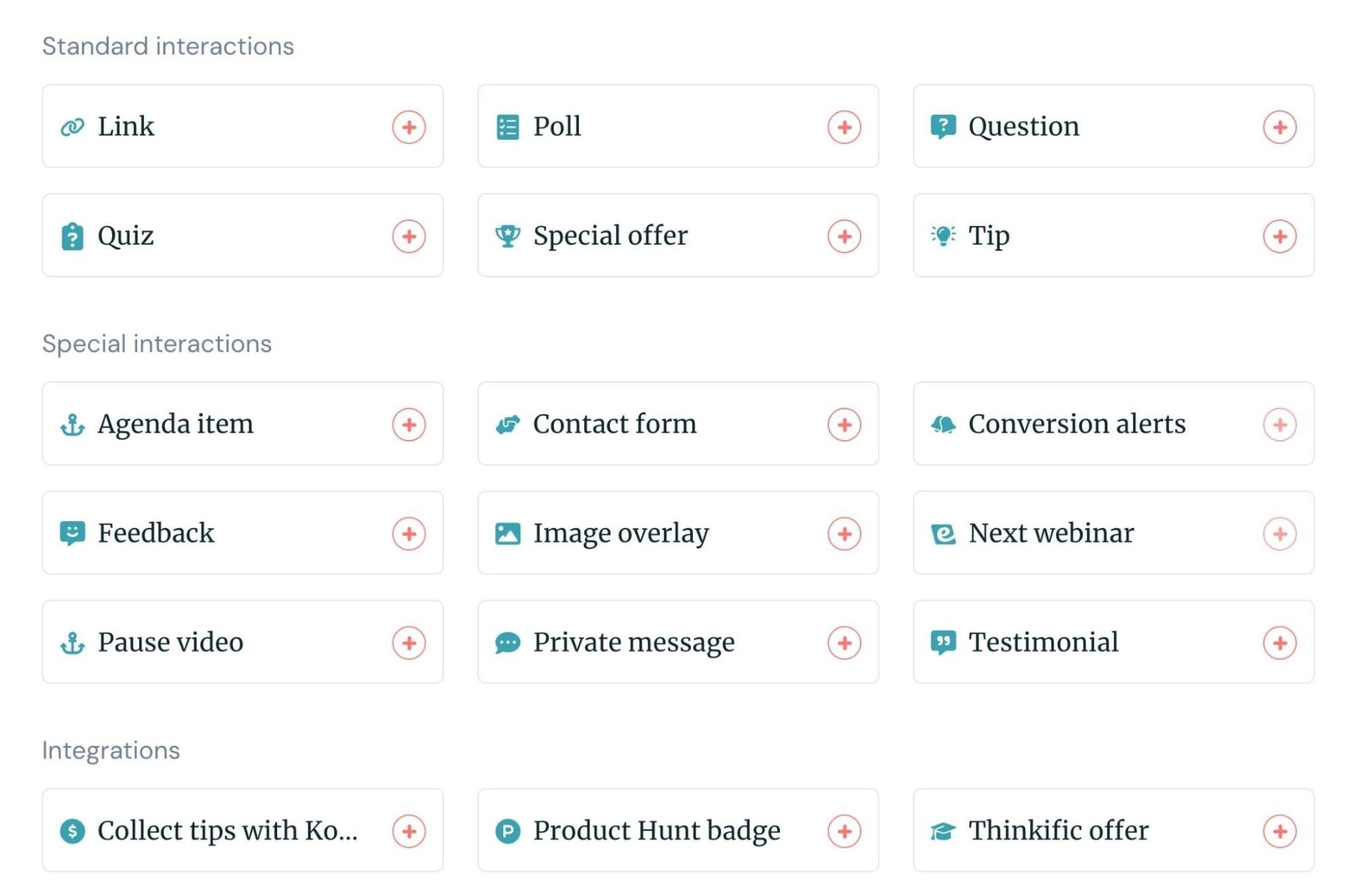
You can include these at any point during the webinar experience to test knowledge, gather input, or prompt trainees to take specific actions.
Adding interactions is a piece of cake — you can place them in your webinar exactly where you want them to appear. Our user-friendly editor displays the video and interaction tools on the same screen, so you can drag the playback slider to the right moment and drop the interaction in. Then, you can preview your webinar as you build to make sure everything appears exactly where and how you want it.
In addition, eWebinar offers convenient AI-generated interactions to streamline this process further. Our tool can suggest interactions and when they should appear, so you can review and approve them with a couple of clicks. The suggested interactions also include pre-written copy so you don’t have to do any manual work (unless you want to make tweaks).
Our system also provides tools to caption webinars: all you have to do is upload a closed caption file in one of the supported formats (VTT, SRT, TTML, SCC, or SAMI).
Captions not only make your content accessible to those who are deaf or hard of hearing, but they also improve engagement, comprehension, and even retention across the board. Captions help all viewers follow along more easily — and they’re especially useful when watching in quiet spaces like offices or libraries, or when attendees don't have headphones handy.
Interactions and captions make it easy to create training webinars that feel personal and engaging — not like passive video watching.
Our flexible chat is available throughout all eWebinar trainings, whether you're running standalone webinars or multi-webinar series. It also gives you the freedom to run training webinars around the clock without needing someone on standby to monitor chat all the time.
Here's where other platforms fall short: they force you to choose between live chat OR email replies. If you enable live chat, someone needs to monitor it while webinars run — if there's no moderator watching, you risk missing conversations and leaving trainees hanging. If you choose email instead, you have to turn off chat entirely and ask attendees to submit questions via a contact form.
eWebinar's asynchronous chat eliminates this trade-off. Trainees can message your team anytime, and you can respond when it's convenient — whether that's immediately or later. Responses sent after webinar sessions end are delivered directly to trainees' emails.
Our system also lets you assign multiple moderators to share the workload. All moderators can use the same central chat admin, so they can see which chats have been replied to and which remain open. This keeps everybody organized and on the same page, and avoids repeat replies.
Note: We also integrate with Slack so you can manage chats from an existing communication channel.
eWebinar lets you control exactly when your training webinars run. When scheduling your webinars, you can combine multiple viewing options and fine-tune your schedule to accommodate different attendee preferences.
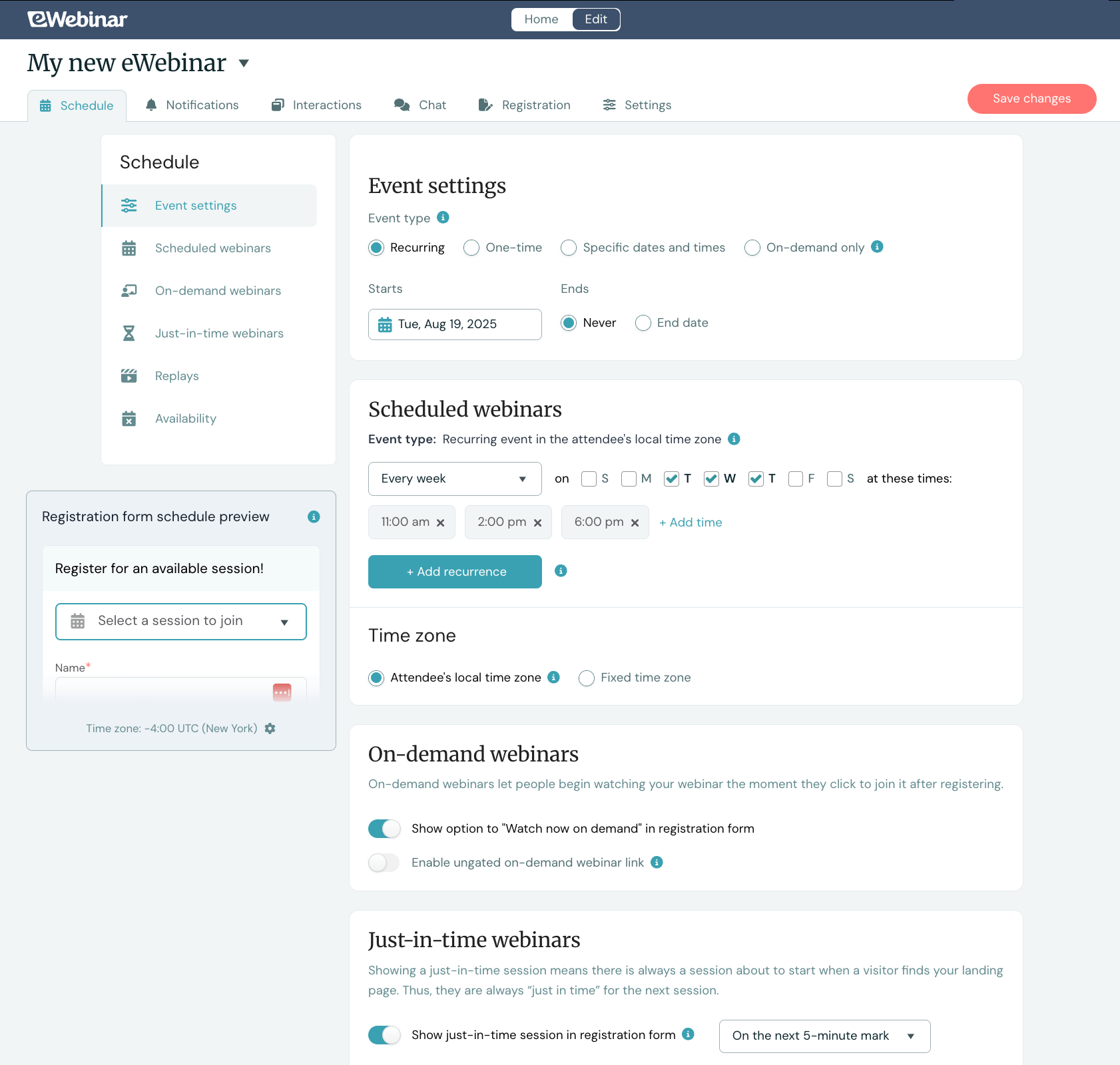
As mentioned above, on-demand viewing and recurring schedules are the most common choices for training webinars. So we suggest enabling both: on-demand viewing so attendees can watch whenever it's convenient and a recurring schedule where webinars run on specific days and times (like every Tuesday and Thursday at 10 a.m. and 2 p.m. in the attendee’s own time zone), so they can always find an easy time on their calendar instead.
Our system even supports just-in-time viewing, letting attendees start a session within minutes of arrival.
You can use any combination of these options to give attendees maximum flexibility when deciding when to watch your webinars. This typically results in a dramatic increase in attendance and audience size you can reach.
Read more: What Are the Best Days & Times to Schedule Webinars (Across Time Zones)?
eWebinar provides detailed analytics dashboards so you can measure how your training webinars are performing. You can track:
Total registrants and registration rates
Attendees and attendance rates
Registration to attendance rates (i.e., how many registered vs. how many actually attended)
How attendees chose to watch — scheduled sessions, on-demand, replays
Average watch times — including how many attendees stayed til the end or left early
Engagement rates — how many viewers interacted with polls, quizzes, and other features (you can also dig into analytics per interaction and see actual responses)
Conversion rates, if you've set specific goals, like booking a follow-up call or completing an action item
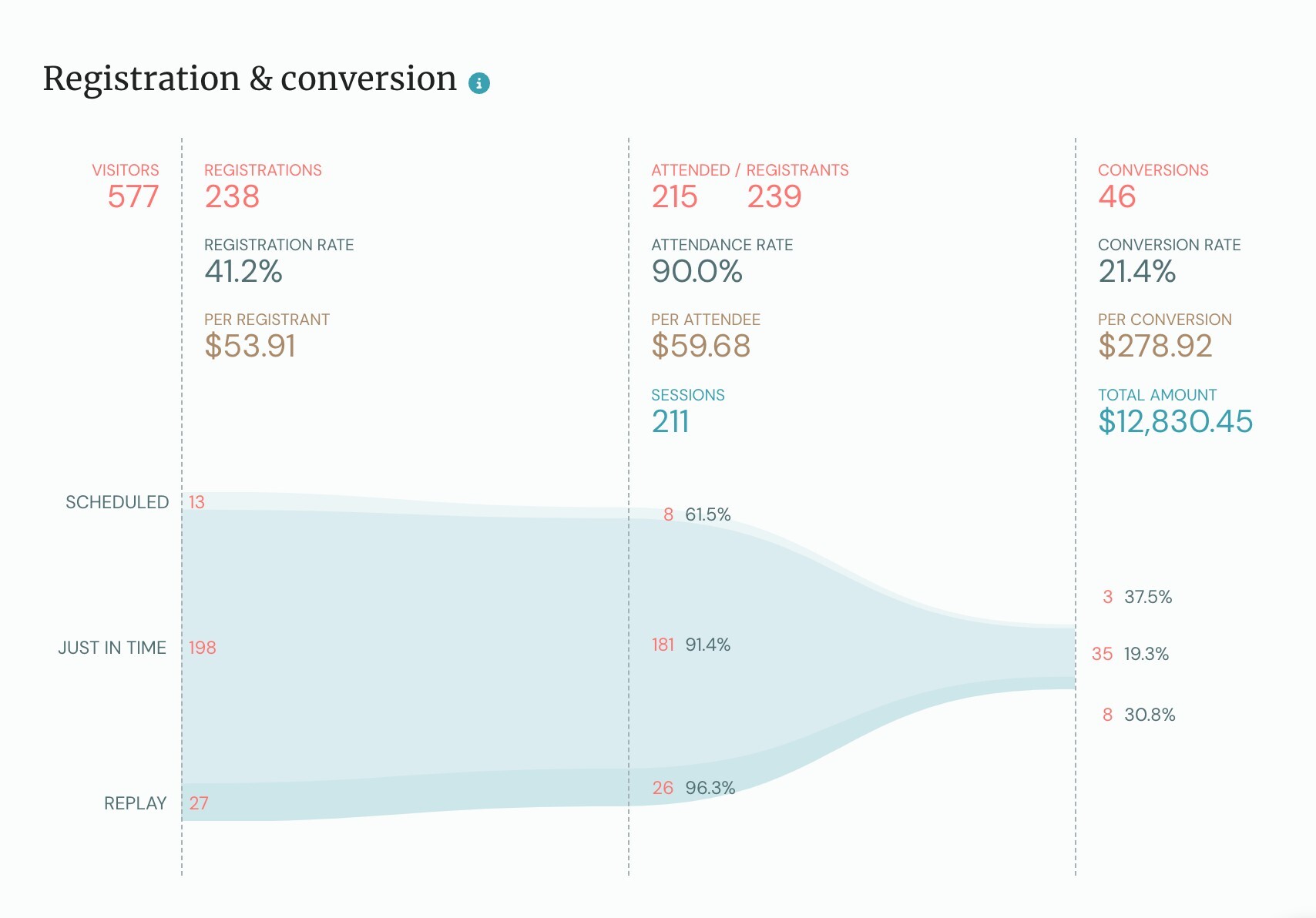
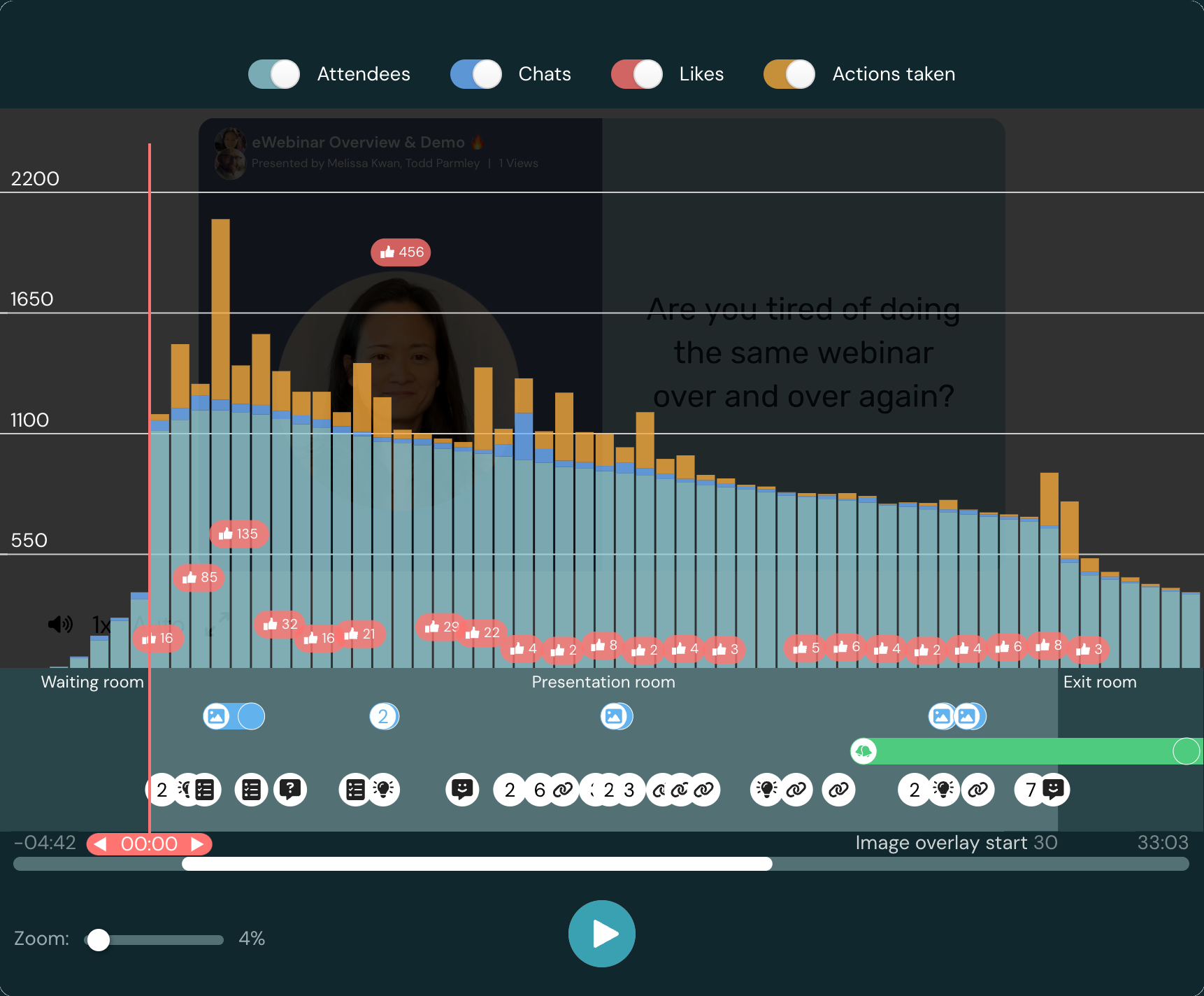
Beyond the high-level numbers, we also provide detailed heatmaps that show you exactly what's happening during each webinar session.
You can see when attendees join or drop off, where they're liking or reacting to content, when they're chatting in with questions, and which interactions are getting the most engagement. This lets you identify which parts of your training resonate with viewers and where you might be losing their attention.
For Webinar Series, we take analytics a step further with a Universal Dashboard that tracks performance across your entire training program. Each series gets its own dashboard, giving you a bird's-eye view of how trainees move through the whole learning path.
You can review:
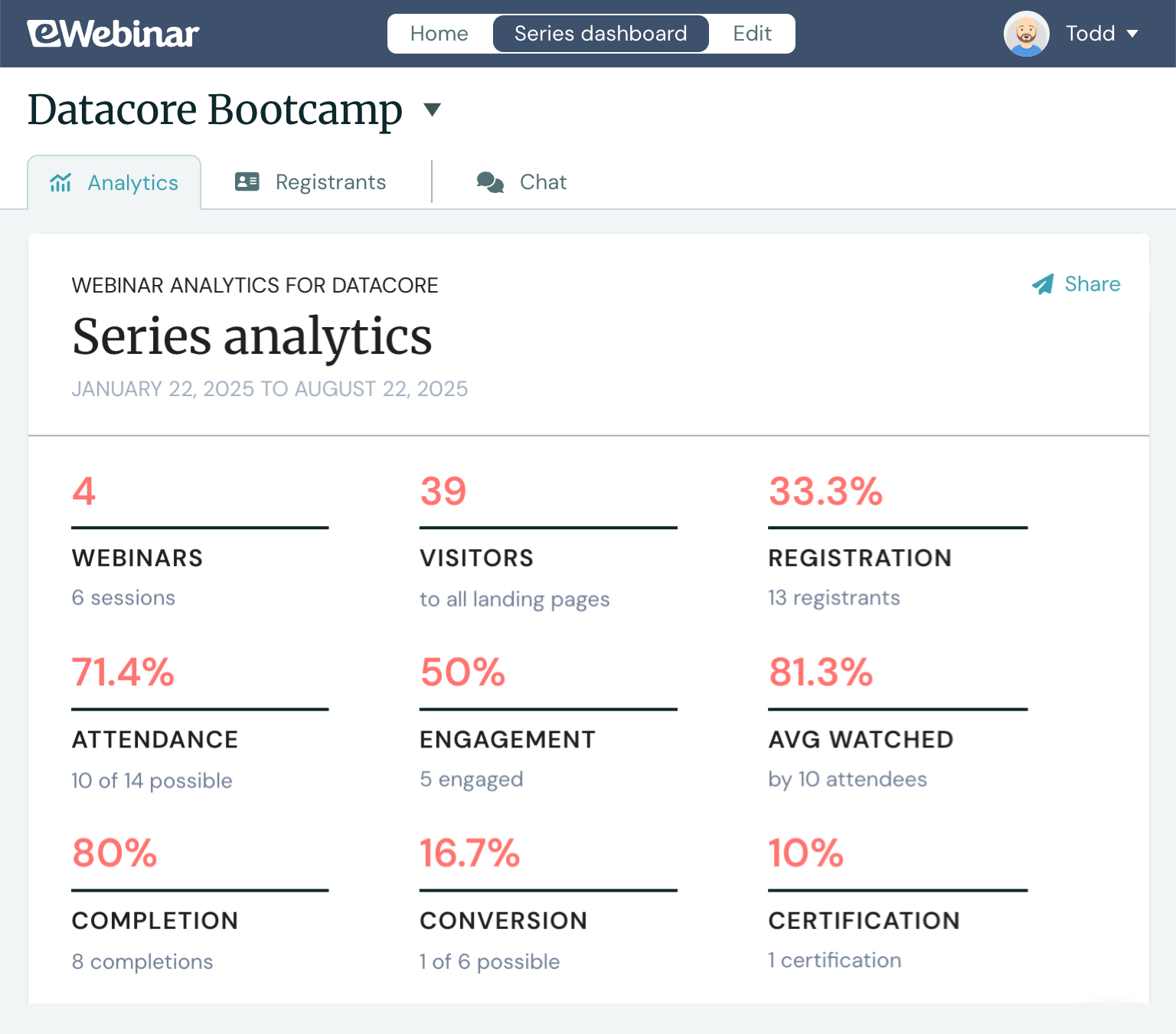
Our system also supports unique registrant tracking (by email address), so you can hone in on individual participant analytics and monitor their journey through the series.
This level of visibility lets you see whether trainees are actually attending and completing the entire program, watching webinars through to the end, and engaging with the content — helping you assess the effectiveness of each series and identify areas to optimize.
eWebinar's AI tools can automatically create professional, branded registration pages for each webinar topic in your series. These are all connected to a central landing page that lists all of the webinars. Trainees only need to register once for the series — no form-filling for each session.
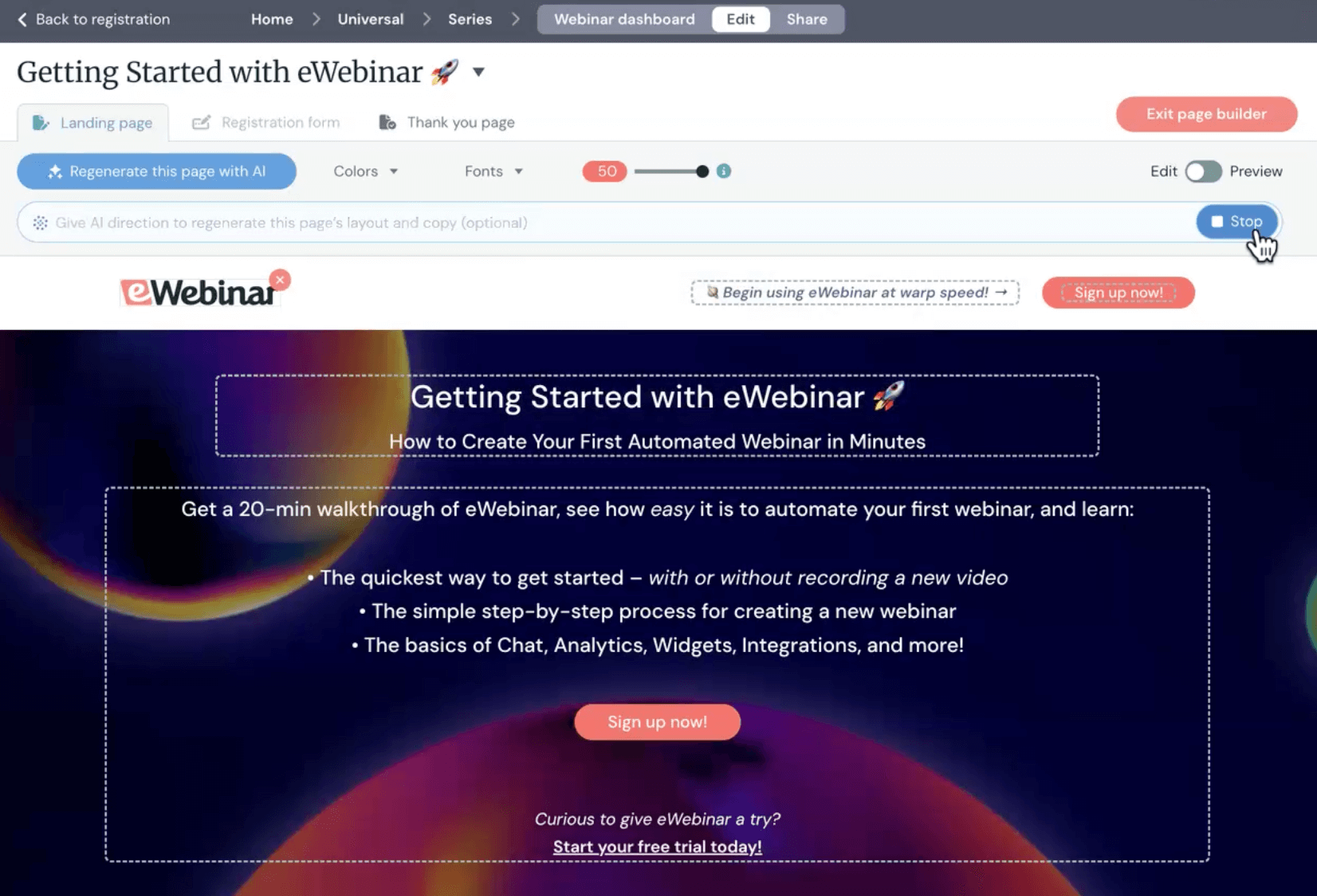
Our system handles the registration page design for you — our AI tool designs the page and generates copy for you to edit, so the process is as quick and easy as possible.
Once your registration page is live, you can share the link on your site or in email campaigns to invite trainees.
In addition, eWebinar provides registration widgets in a variety of styles — registration forms, pop-ups, cards, buttons — giving you the flexibility to use third-party landing pages or embed widgets across your site.
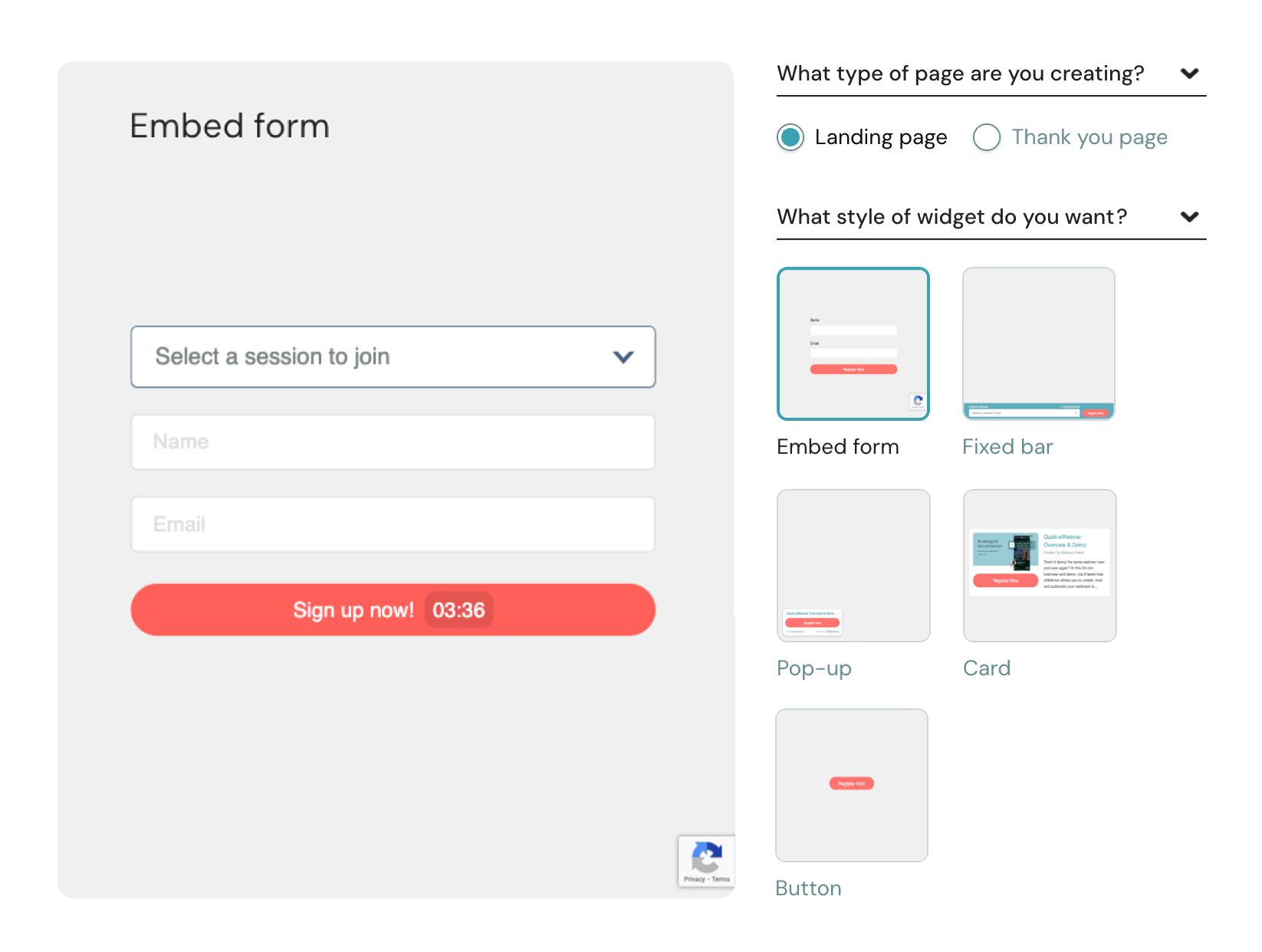
eWebinar also handles all follow-up communications automatically.
After trainees register, they'll receive confirmation emails with access details. Then, the system sends automated email reminders before scheduled sessions and follow-ups after webinars end. We provide pre-written templates for all of these communications, or you can customize them with your own messaging.
We offer a 14-day free trial for all users to test our platform and see if it’s the right solution.
Our paid plans are based on the number of webinars you run and the number of attendees:
You can also scale these plans as you need to support larger audiences. You can add registrant seats in increments of 1k for $49/month.
The Webinar Series + Universal Dashboard add-on costs $429/month or $4,376/year ($365/month for annual plans).
There are a variety of automated webinar software options that let you pre-record training sessions and make them available on-demand or on a recurring basis. However, none of those tools offer the in-depth Webinar Series feature or asynchronous chat that we do — so they’re not super effective for those using webinars for training.
If you’re interested in exploring more names, you can compare all of the top-rated systems here. This guide covers Demio, EasyWebinar, WebinarGeek, EverWebinar, BigMarker, WebinarNinja, StealthSeminar, GoToWebinar, ClickMeeting, Livestorm, and more.
As mentioned above, live webinar software is best suited for teams that only run training periodically or on an ad hoc basis. These are the more traditional webinar solutions that let you host live sessions with multiple presenters, manage large audiences, and facilitate spontaneous discussions.
When evaluating live webinar platforms for training purposes, we suggest focusing on:
Options and tools for presenters. Does the software give your team what they need to lead effective, engaging sessions? This includes screen sharing, presentation uploads, whiteboard capabilities, and the ability to have multiple hosts or guest speakers on camera.
Moderated public chat. Can you maintain a productive group conversation? Look for moderation controls that let webinar hosts delete messages, mute disruptive users, or remove participants entirely without shutting down chat for everyone.
Audience engagement features. What keeps attendees tuned in and interested in training? The best platforms offer functionality like live polls, Q&A sessions, surveys, hand-raising, and the ability to bring attendees on camera for discussion.
Here are five of the most popular names in the category:
Zoom Webinars: A well-known name in the video conferencing and webinar space. It supports 500 to 50,000 live attendees, multi-presenter sessions with up to 100 panelists, breakout rooms for group discussions, and basic chat moderation with the ability to remove participants.
Read more reviews of Zoom Webinars here & find Zoom Webinar alternatives here.
Zoho Webinars: Part of Zoho's comprehensive business software suite, offering an affordable webinar solution for small businesses already using Zoho products. It supports screen sharing, interactive whiteboards, hand-raising for participation, individual user muting, and the ability to promote attendees to panelist roles on the fly.
Read more reviews of Zoho Webinars here.
WebinarJam: Best for product teams that want to educate and live sell, with conversion features like purchase buttons, countdown timers, and social proof notifications. It supports up to six presenters on camera simultaneously, advanced chat moderation (edit, delete, or stealth-mute users), and interactions like polls, Q&A, and one-click purchasing.
Read more reviews of WebinarJam here.
Crowdcast: Browser-based solution designed for creators and educators who want to host conversational webinars. It supports easy audience-to-stage interaction, Q&A with upvotes to surface popular questions, and moderation tools to pin messages or convert chat into an organized Q&A.
Read more reviews of Crowdcast here.
Webex Webinars: Cisco's enterprise webinar platform with robust security certifications and the capacity for massive audiences (over 100,000 attendees). It offers presentation controls with practice sessions and multiple panelists, strong Q&A moderation with question assignment and prioritization, and engagement tools including polls, gesture recognition, and breakout rooms.
Read more reviews of Webex Webinars here.
If you’re interested in comparing more of the best webinar software, you can do so in our guide here.
Choosing between live and automated webinar software depends on two factors: how frequently you run training sessions and the nature of those sessions.
Live platforms work well when training happens periodically, and the content shifts each time — maybe you're bringing in different subject-matter experts, covering new information, or facilitating collaborative discussions where participants learn from each other's questions and insights.
Automated platforms shine when you're delivering the same core training repeatedly to different audiences. If you’re reviewing the same information from training to training, automation eliminates the need to show up for every single session, and it gives attendees the flexibility to learn on their own schedule.
What sets eWebinar apart is that we're the only solution with tools purpose-built for training automation — from Webinar Series and cross-webinar analytics to chat that works whether you're online or not. Add in our extensive interaction gallery and flexible scheduling across time zones, and you have an all-in-one solution for delivering professional trainings at scale.
Our platform lets you truly automate training sessions without sacrificing quality, control, or accountability. Ready to see how it works? Join our free demo below.
Commencez votre essai gratuit de 14 jours dès aujourd'hui !